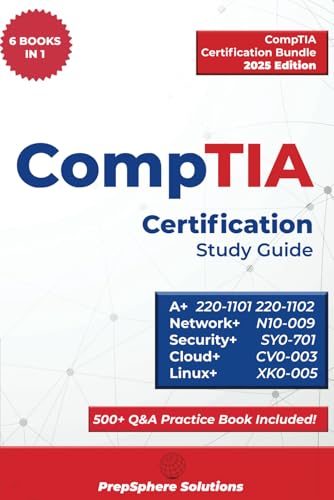
View
ViewWhy Hands-On Practice Matters More Than Memorization for IT Certifications
If you are studying for CompTIA A+ or Linux+, you have probably noticed that the exams are shifting away from pure memorization toward practical, performance-based questions (PBQs). CompTIA A+ (220-1201 and 220-1202) includes PBQs that require you to configure settings, troubleshoot issues, and execute commands in simulated environments. CompTIA Linux+ (XK0-006) centers on command-line administration — you need to know not just what a command does, but how to actually use it under pressure.
Reading textbooks and watching videos will teach you concepts. But concepts alone will not save you when a PBQ drops you into a simulated terminal and asks you to configure an SSH server, set firewall rules, or troubleshoot a failed service. That requires muscle memory — the kind you only build by typing real commands on a real system.
This is where a Raspberry Pi home lab changes everything. For under $130, you get a fully functional Linux computer that you can break, rebuild, and experiment with as many times as you need — without risking your primary workstation and without paying for cloud VMs. It is the most cost-effective way to convert passive study into active, exam-ready skills.
Study CompTIA A+ exam objectives for free with our CompTIA A+ study guide and practice questions.
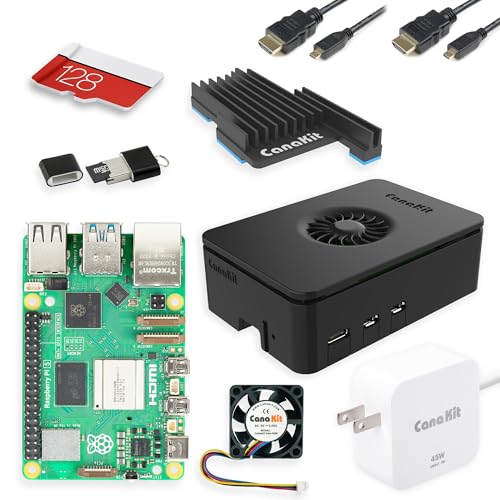
CanaKit Raspberry Pi 5 Starter Kit PRO Turbine Black 128GB Edition 8GB RAM
by CanaKit
$129.99
- Complete all-in-one kit: Pi 5 (8 GB), 128 GB microSD, Turbine active cooling case, USB-C power supply, and micro-HDMI cables
- Best balance of RAM and price for running multiple services, Docker containers, and IT certification labs simultaneously
- Active Turbine cooling prevents thermal throttling during sustained server workloads — critical for 24/7 home lab use
The Raspberry Pi 5: Why It Is the Best Lab Platform for IT Certification Students
The Raspberry Pi 5 is not a toy computer. It is a genuine single-board computer powered by the Broadcom BCM2712 quad-core Arm Cortex-A76 processor clocked at 2.4 GHz, with up to 16 GB of LPDDR4X RAM, a PCIe 2.0 interface, dual 4K HDMI output, Gigabit Ethernet, Wi-Fi 5, Bluetooth 5.0, and USB 3.0 ports. It runs full Linux distributions — Raspberry Pi OS (Debian-based), Ubuntu Server, Fedora, and more — with performance comparable to a mid-range laptop from just a few years ago.
What Makes It Perfect for IT Certification Labs
It is real hardware. Unlike virtual machines, a Raspberry Pi gives you physical components to inspect and understand: a CPU with visible architecture, RAM modules, storage (microSD and NVMe via PCIe), GPIO pins, power delivery, and cooling solutions. For CompTIA A+ Core 1 Domain 3 (Hardware) and Domain 5 (Hardware and Network Troubleshooting), handling real hardware is irreplaceable.
It runs real Linux. The same distributions, the same package managers (apt, snap), the same systemd service management, the same file system hierarchy. Every command you learn on a Raspberry Pi works identically on a data center server running Ubuntu or Debian.
It is expendable. Flash a new OS image in 10 minutes if something breaks. Experiment with risky configurations — kernel parameters, firewall rules, partition tables — without consequences. This freedom to fail is the fastest path to learning.
It is cheap to run 24/7. Drawing only 5-15 watts under load, the Pi costs approximately $1-2 per month in electricity. Run your DNS server, web server, and monitoring tools around the clock for months while you study.
4 GB vs 8 GB vs 16 GB: Which RAM Configuration Do You Need?
| RAM | Price (CanaKit PRO) | Best For | Can Handle |
|---|---|---|---|
| 4 GB | $99.99 | CompTIA A+ basics, single-service labs, learning Linux commands | 1-2 services, basic scripting, OS installation practice |
| 8 GB | $129.99 | Most IT certification students, multi-service labs, lightweight Docker | 5-8 services simultaneously, Docker containers, Samba + DNS + web server |
| 16 GB | $169.99 | Advanced labs, Kubernetes (K3s), network monitoring, DevOps practice | 10+ Docker containers, K3s cluster, Nagios/Zabbix, concurrent heavy workloads |
Our recommendation: The 8 GB model is the sweet spot for CompTIA A+ and Linux+ preparation. It gives you enough headroom to run realistic multi-service environments without constant memory pressure. If you plan to continue into cloud and DevOps certifications after A+ and Linux+, the 16 GB model is a worthwhile investment.
CanaKit Raspberry Pi 5 Starter Kit PRO Turbine Black 128GB Edition 4GB RAM
by CanaKit
$99.99
- Same complete PRO kit accessories as the 8 GB model at $30 less — ideal for students on a tight budget
- 4 GB RAM handles single-service labs, basic Linux administration, and most CompTIA A+ hands-on exercises
- Upgrade path: start with 4 GB for A+ study, then add an 8 GB or 16 GB Pi later for advanced Linux+ and Docker labs
CompTIA A+ (220-1201/1202) Objectives You Can Practice on a Raspberry Pi
The CompTIA A+ certification covers two exams: Core 1 (220-1201) focuses on hardware, networking, mobile devices, virtualization, and hardware troubleshooting; Core 2 (220-1202) focuses on operating systems, security, software troubleshooting, and operational procedures. Here is how a Raspberry Pi maps to specific exam domains.
Core 1 (220-1201) Objectives
Networked hosts (Domain 2, objective 2.3): The V15 objectives list legacy/embedded systems and Internet of Things (IoT) devices among networked hosts. Setting up a Raspberry Pi on your network gives you hands-on experience with a small embedded-style computer.
Domain 3 — Hardware (25%): Assembling a Raspberry Pi kit teaches you about:
- Storage devices: microSD cards, NVMe SSDs via PCIe adapter — understand flash storage, read/write speeds, and storage interfaces
- RAM: Identify LPDDR4X RAM, understand how memory capacity affects system performance
- Cooling: Active cooling (fans) vs passive cooling (heatsinks, aluminum cases) — thermal management concepts
- Power: USB-C power delivery, voltage requirements (5V/5A for Pi 5), and what happens when power is insufficient
- Connectors and ports: HDMI, USB-A, USB-C, Ethernet RJ-45, GPIO header pins
- CPU architecture: the Pi's Arm Cortex-A76 is an example of the ARM architecture listed in objective 3.5, next to x86/x64
Domain 2 — Networking (23%): With the Pi's built-in Gigabit Ethernet and Wi-Fi:
- Configure static IP addresses and subnet masks
- Set up DHCP and DNS servers
- Practice with TCP/IP, ping, traceroute, netstat, and nslookup
- Build firewall rules and understand port filtering
Core 2 (220-1202) Objectives
Domain 1 — Operating Systems (28%): This is where the Pi truly shines:
- Install Linux from scratch — download an image, flash it to microSD, boot, and configure
- Navigate the Linux file system — /, /home, /etc, /var, /usr, /tmp
- Use the command line — ls, cd, cp, mv, rm, mkdir, chmod, chown, grep, find, apt, sudo
- Manage users and groups — useradd, usermod, groupadd, passwd, /etc/passwd, /etc/shadow
- Configure services — systemctl start/stop/enable/disable, service status checks
- Edit configuration files — nano, vim, understanding /etc directory structure
Troubleshooting practice: CompTIA prints its six-step troubleshooting methodology as a competency standard in the Core 1 objectives (the method itself is not tested), while troubleshooting scenarios carry real weight: Hardware and Network Troubleshooting is 28% of Core 1 and Software Troubleshooting is 23% of Core 2. The steps (identify the problem, establish a theory, test the theory, establish a plan of action, verify, document) become natural when you are constantly troubleshooting real issues on your Pi — services that will not start, network connectivity problems, permission errors, and boot failures.
Practice A+ exam questions to test your hardware and OS knowledge with our free CompTIA A+ practice exams.
CanaKit Raspberry Pi 5 16GB Starter Kit PRO Turbine Black 128GB Edition 16GB RAM
by CanaKit
$169.99
- Maximum 16 GB RAM for running Kubernetes (K3s), multiple Docker containers, and network monitoring tools like Nagios/Zabbix
- Future-proof investment: handles advanced DevOps labs, container orchestration, and multi-service architectures
- Same Turbine PRO kit accessories with 128 GB microSD, active cooling, power supply, and cables included
CompTIA Linux+ (XK0-006) Objectives Mapped to Raspberry Pi Projects
The CompTIA Linux+ V8 exam (XK0-006) covers five domains: System Management (23%), Services and User Management (20%), Security (18%), Automation, Orchestration, and Scripting (17%), and Troubleshooting (22%). Here are specific Raspberry Pi projects, with the exact commands you will use.
System Management (23%) and Services and User Management (20%)
Project: Install and Configure Raspberry Pi OS Server
This project covers the boot process, storage management, and system initialization, which Linux+ V8 lists under System Management.
# After flashing Raspberry Pi OS Lite to microSD and booting:

# Update the system
sudo apt update && sudo apt upgrade -y

# Check system information
uname -a          # Kernel version and architecture
lsb_release -a    # Distribution information
hostnamectl        # Hostname and OS details
free -h            # Memory usage
df -h              # Disk usage
lsblk              # Block device listing
Project: Manage Services with systemd
# Start, stop, and manage services
sudo systemctl status ssh
sudo systemctl start apache2
sudo systemctl enable apache2    # Start on boot
sudo systemctl disable apache2   # Don't start on boot
journalctl -u apache2 -f         # Follow service logs in real time
Security (18%)
Project: Harden SSH Access
# Generate SSH key pair on your workstation
ssh-keygen -t ed25519 -C "your-email@example.com"

# Copy public key to Pi
ssh-copy-id pi@your-pi-ip

# Edit SSH config to disable password authentication
sudo nano /etc/ssh/sshd_config
# Set: PasswordAuthentication no
# Set: PermitRootLogin no

sudo systemctl restart ssh
Project: Configure Firewall Rules with iptables
# Allow SSH (port 22)
sudo iptables -A INPUT -p tcp --dport 22 -j ACCEPT

# Allow HTTP (port 80) and HTTPS (port 443)
sudo iptables -A INPUT -p tcp --dport 80 -j ACCEPT
sudo iptables -A INPUT -p tcp --dport 443 -j ACCEPT

# Allow established connections
sudo iptables -A INPUT -m state --state ESTABLISHED,RELATED -j ACCEPT

# Drop everything else
sudo iptables -A INPUT -j DROP

# Save rules to persist across reboots
sudo apt install iptables-persistent -y
sudo netfilter-persistent save
Project: File Permissions and ACLs
# Create users and groups
sudo useradd -m -s /bin/bash webadmin
sudo groupadd webteam
sudo usermod -aG webteam webadmin

# Set file permissions
chmod 750 /var/www/html
chown root:webteam /var/www/html

# Set ACLs for granular control
sudo apt install acl -y
setfacl -m u:webadmin:rwx /var/www/html
getfacl /var/www/html
Automation, Orchestration, and Scripting (17%)
Project: Automated Backup Script with Cron
#!/bin/bash
# backup.sh - Automated backup script for Linux+ practice
BACKUP_DIR="/home/pi/backups"
DATE=$(date +%Y%m%d_%H%M%S)
BACKUP_FILE="$BACKUP_DIR/config-backup-$DATE.tar.gz"

# Create backup directory if it doesn't exist
mkdir -p "$BACKUP_DIR"

# Backup important configuration files
tar -czf "$BACKUP_FILE" /etc/ssh /etc/apache2 /etc/iptables 2>/dev/null

# Remove backups older than 7 days
find "$BACKUP_DIR" -name "*.tar.gz" -mtime +7 -delete

echo "Backup completed: $BACKUP_FILE"
# Schedule with cron - runs daily at 2 AM
crontab -e
# Add: 0 2 * * * /home/pi/scripts/backup.sh >> /home/pi/logs/backup.log 2>&1
Networking (System Management and Troubleshooting)
Project: Build a Complete Network Services Stack
# Install DHCP server
sudo apt install isc-dhcp-server -y
# Configure /etc/dhcp/dhcpd.conf with your subnet and range

# Install DNS server
sudo apt install bind9 -y
# Configure /etc/bind/named.conf.local with your zone files

# Install web server
sudo apt install apache2 -y
sudo systemctl enable apache2

# Install Samba file share
sudo apt install samba -y
# Configure /etc/samba/smb.conf with your share definitions

# Verify all services are running
sudo systemctl status isc-dhcp-server bind9 apache2 smbd
Project: Network Monitoring with Nagios
# Install Nagios on the 8 GB or 16 GB model
sudo apt install nagios4 nagios-plugins -y

# Or install the lighter-weight alternative
sudo apt install zabbix-server-pgsql zabbix-frontend-php -y
Study all Linux+ exam domains with our free CompTIA Linux+ practice questions and study guide.
Setting Up a VPN Server for Advanced Networking Practice
One of the most valuable projects for both A+ networking objectives and Linux+ security objectives is building a VPN server:
# Install WireGuard VPN
sudo apt install wireguard -y

# Generate server keys
wg genkey | tee /etc/wireguard/server_private.key | wg pubkey > /etc/wireguard/server_public.key

# Configure WireGuard interface
sudo nano /etc/wireguard/wg0.conf

# Enable IP forwarding
echo "net.ipv4.ip_forward = 1" | sudo tee -a /etc/sysctl.conf
sudo sysctl -p

# Start WireGuard
sudo systemctl enable wg-quick@wg0
sudo systemctl start wg-quick@wg0
This single project covers network interfaces, encryption, tunneling, IP forwarding, kernel parameters, and service management — all testable topics across both A+ and Linux+.

CanaKit Raspberry Pi 5 Starter Kit PRO Aluminum 128GB Edition 8GB RAM
by CanaKit
$139.99
- Premium aluminum case acts as a passive heatsink for superior thermal management without fan noise
- Same 8 GB RAM and 128 GB microSD as the Turbine PRO — ideal for quiet 24/7 home lab environments
- Best choice if your Pi will sit on a desk or shelf where silent operation and professional appearance matter
CanaKit Starter Kits Compared: Which One Should You Buy?
CanaKit is the most trusted Raspberry Pi kit manufacturer, and for good reason: their kits include every component you need with verified compatibility. No hunting for the right power supply amperage, no discovering your microSD card is too slow to boot, no thermal throttling because you forgot a heatsink. Here is how the five kits compare for IT certification lab use.
Top Pick: CanaKit PRO Turbine Black 8 GB ($129.99)
This is the kit we recommend for most CompTIA A+ and Linux+ students. The 8 GB RAM handles multi-service labs comfortably, the 128 GB microSD gives you room for multiple OS images and Docker volumes, and the Turbine active cooling case keeps the CPU at safe temperatures during sustained workloads. The included USB-C power supply delivers the full 5V/5A the Pi 5 requires — underpowered supplies are the number one cause of mysterious crashes and data corruption on Raspberry Pi boards.
Best for: Most IT certification students who want a ready-to-go lab with no additional purchases needed.
Budget Pick: CanaKit Essentials 8 GB ($89.99)
If you already have a USB-C power supply and do not mind a basic case without active cooling, the Essentials kit saves you $40 while still giving you the full 8 GB of RAM. The trade-off is a smaller microSD card and no Turbine cooling — which means potential thermal throttling during extended multi-service workloads. For intermittent study sessions (a few hours at a time), this is a perfectly adequate choice.
Best for: Budget-conscious students who prioritize RAM capacity over accessories.
Power User: CanaKit PRO Turbine Black 16 GB ($169.99)
The 16 GB model is overkill for basic A+ and Linux+ study, but it is the right choice if you plan to continue into cloud certifications, DevOps, or container orchestration after your CompTIA exams. With 16 GB, you can run a K3s Kubernetes cluster, multiple Docker containers, and a monitoring stack (Prometheus + Grafana or Nagios) simultaneously without any memory pressure.
Best for: Students planning a longer certification path (A+ → Linux+ → Cloud+ or AWS/Azure) who want a lab that grows with them.
Silent Lab: CanaKit PRO Aluminum 8 GB ($139.99)
The Aluminum edition replaces the plastic Turbine case with an all-aluminum enclosure that acts as a massive passive heatsink. No fan means zero noise — ideal if your Pi sits on your desk or in a shared living space. Thermal performance is excellent for normal workloads, though the Turbine case edges it out under maximum sustained load. The $10 premium over the Turbine PRO buys you silence and a premium look.
Best for: Students who want a quiet, professional-looking home lab device.
Entry Level: CanaKit PRO Turbine Black 4 GB ($99.99)
The 4 GB model is the most affordable PRO kit. It includes the same Turbine cooling case, 128 GB microSD, power supply, and cables — just with less RAM. For CompTIA A+ study focused on hardware, OS installation, and basic command-line work, 4 GB is sufficient. You will hit limits when running multiple services simultaneously, but for sequential learning (one project at a time), it works.
Best for: Students focused primarily on CompTIA A+ who want the complete PRO accessories at the lowest price.

CanaKit Raspberry Pi 5 Essentials Starter Kit 8GB RAM
by CanaKit
$89.99
- Most affordable CanaKit option with 8 GB RAM — $40 less than the PRO for students who already have some accessories
- Includes Pi 5 (8 GB), case, power supply, and microSD card — the basics needed to get started
- Best budget pick: provides the same 8 GB computing power at the lowest price point for IT certification labs
10 Raspberry Pi Projects That Map Directly to IT Certification Exam Objectives
Here is a structured project list. Complete these in order for a logical progression from basic setup to advanced networking and security.
Project 1: First Boot and System Exploration (A+ Core 1 Domain 3 + Core 2 Domain 1)
Flash Raspberry Pi OS to microSD, boot the Pi, and explore the hardware and system. Run lscpu, free -h, df -h, lsblk, lsusb, and ip addr to understand what the system looks like from the command line.
Project 2: User and Permission Management (A+ Core 2 Domain 1 + Linux+ Services and User Management)
Create multiple user accounts, assign them to groups, set file ownership and permissions with chmod and chown, and practice sudo configuration by editing /etc/sudoers with visudo.
Project 3: SSH Server Hardening (Linux+ Security)
Enable SSH, configure key-based authentication, disable password login, change the default port, and test connectivity from another device. Linux+ V8 lists securing remote access under OS hardening.
Project 4: Apache Web Server (Linux+ Services and User Management)
Install Apache, create a basic HTML site, configure virtual hosts, enable HTTPS with a self-signed certificate, and manage the service with systemctl. Check logs in /var/log/apache2/.
Project 5: DNS Server with BIND9 (A+ Core 1 Domain 2)
Install BIND9, configure a forward lookup zone, add A records and CNAME records, and test with dig and nslookup. Understanding DNS is critical for both A+ and Linux+.
Project 6: DHCP Server (A+ Core 1 Domain 2)
Install and configure isc-dhcp-server, define a scope with IP range, subnet mask, default gateway, and DNS server. Connect a second device and verify it receives an IP address via DHCP.
Project 7: Firewall Configuration (Linux+ Security)
Write iptables rules to allow SSH, HTTP, HTTPS, and DNS while blocking everything else. Practice logging dropped packets. Save rules to persist across reboots. Then convert your rules to nftables syntax — Linux+ tests both.
Project 8: Samba and NFS File Shares
Set up a Samba share accessible from Windows machines and an NFS share accessible from other Linux machines. Configure access permissions, test from client devices, and troubleshoot permission issues.
Project 9: Bash Scripting and Cron Automation (Linux+ Automation, Orchestration, and Scripting)
Write scripts for automated backups, log rotation, system health checks, and disk space alerts. Schedule them with cron. Practice reading and modifying existing scripts — the exam tests both writing and interpreting scripts.
Project 10: Network Monitoring with Pi-hole and Nagios (A+ Core 1 Domain 2 + Linux+ Troubleshooting)
Install Pi-hole as a network-wide DNS sinkhole (ad blocker) to learn DNS filtering, then install Nagios or a lightweight alternative to monitor services and network devices. This teaches you service dependencies, alerting, and log analysis.
Headless Setup: Why You Should Skip the Monitor
For IT certification practice, we recommend running your Raspberry Pi headless — without a monitor, keyboard, or mouse connected. Instead, SSH into the Pi from your laptop or desktop. Here is why:
- It mirrors real-world IT work. Production servers do not have monitors attached. Every sysadmin manages Linux servers remotely via SSH. Learning this workflow from day one builds the right habits.
- It saves money. No need for an extra monitor, keyboard, or mouse. Your existing computer is the interface.
- It reinforces command-line skills. Without a graphical desktop to fall back on, you are forced to do everything via the terminal — exactly what the Linux+ exam tests.
Setting up headless access is straightforward: enable SSH during the OS flash process (using Raspberry Pi Imager), find the Pi's IP address on your router's admin page, and connect with ssh pi@<ip-address> from any terminal.
Power Consumption and Long-Term Cost Analysis
One practical advantage of a Raspberry Pi lab over traditional hardware is the operating cost:
| Device | Idle Power | Load Power | Monthly Cost (24/7 at $0.15/kWh) |
|---|---|---|---|
| Raspberry Pi 5 (8 GB) | 3-5 W | 10-15 W | $1.08 - $1.62 |
| Old Desktop PC | 60-100 W | 200-350 W | $6.48 - $37.80 |
| Used Server (Dell PowerEdge) | 100-200 W | 300-500 W | $10.80 - $54.00 |
| Cloud VM (AWS t3.small) | N/A | N/A | $15.00 - $20.00 |
Over a 4-6 month study period, the Raspberry Pi saves you $60-$300+ compared to alternatives — and you own the hardware permanently. After passing your exams, it becomes a Pi-hole ad blocker, a NAS, a media server, or a VPN endpoint.
Combining Your Raspberry Pi Lab with OpenExamPrep
The most effective study approach is a three-part cycle:
- Study the concepts — Use OpenExamPrep's free CompTIA A+ study materials and CompTIA Linux+ study materials to learn what the exam tests
- Practice on your Pi — Build the projects from this guide to turn concepts into hands-on skills
- Test your knowledge — Take practice quizzes on OpenExamPrep to identify gaps, then go back to step 1 or 2
This cycle of learn → do → verify is what separates candidates who pass on the first attempt from those who need retakes. The Raspberry Pi gives you the "do" component that no amount of reading can replace, and OpenExamPrep gives you the "learn" and "verify" components — completely free.
Final Verdict: Which Raspberry Pi Kit to Buy
| If you are... | Buy this | Price |
|---|---|---|
| Most IT certification students | CanaKit PRO Turbine 8 GB | $129.99 |
| On a tight budget | CanaKit Essentials 8 GB | $89.99 |
| Planning advanced DevOps labs | CanaKit PRO Turbine 16 GB | $169.99 |
| Want a silent home lab | CanaKit PRO Aluminum 8 GB | $139.99 |
| Focused on A+ basics only | CanaKit PRO Turbine 4 GB | $99.99 |
Every kit on this list gives you a legitimate Linux lab platform for under $170. The difference between passing and failing a CompTIA exam often comes down to hands-on confidence — and there is no cheaper, faster, or more effective way to build that confidence than a Raspberry Pi.
Start your exam preparation today with free CompTIA practice questions at OpenExamPrep's CompTIA A+ page and CompTIA Linux+ page.
As an Amazon Associate, OpenExamPrep earns from qualifying purchases. All recommendations are based on editorial review.

 Free CE
 Learning path on Pluralsight
 Take courses on Udemy